By EC Team · Updated September 12, 2026 · 13 min read
Creating a new product detail page is a pivotal step in turning your product into an active business on Amazon. This guide focuses specifically on creating a brand-new listing from scratch for your own private-label or unique product, rather than attaching an offer to an existing catalog page.
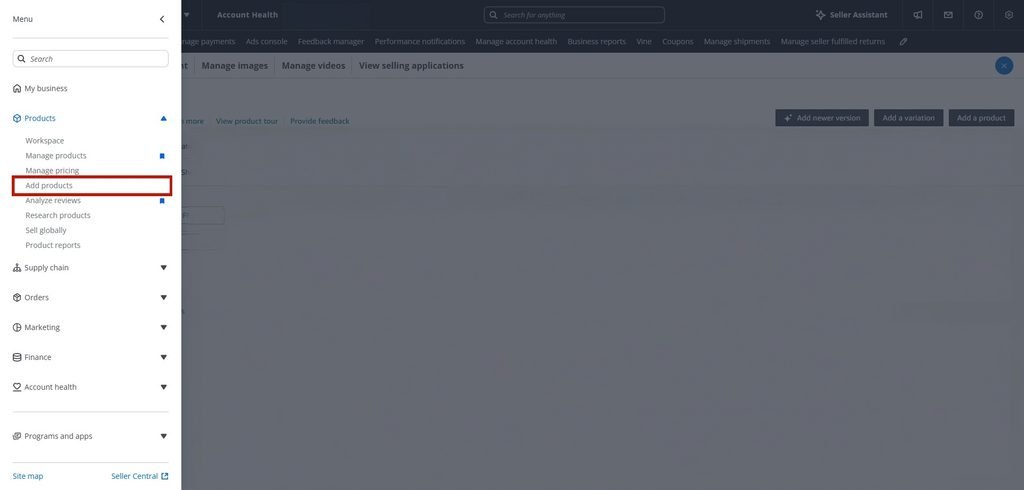
Step 1. Go to Add Products
Sign in to your Seller Central account.
From the top menu, go to Catalog → Add Products.
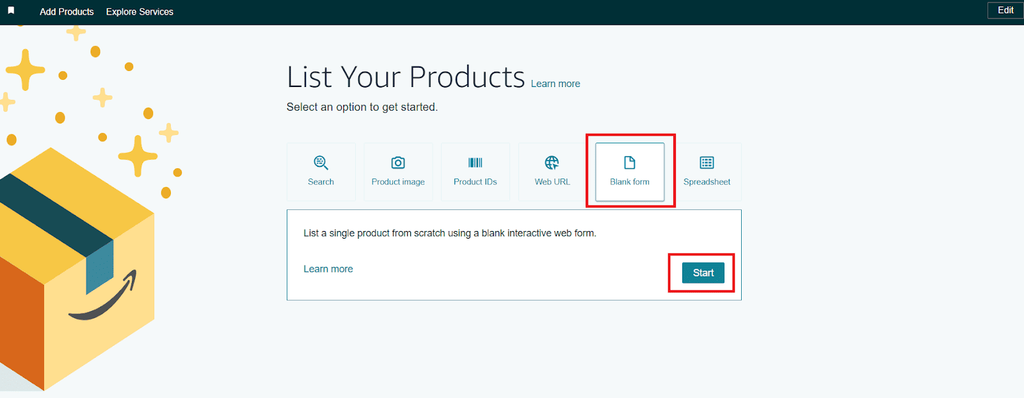
If you’re creating a completely new product, select the option to create a new product listing. Depending on your Seller Central account and Amazon’s current interface, you may see an option such as Blank form.
Click Start to begin.
Step 2. Choose Your Product Type
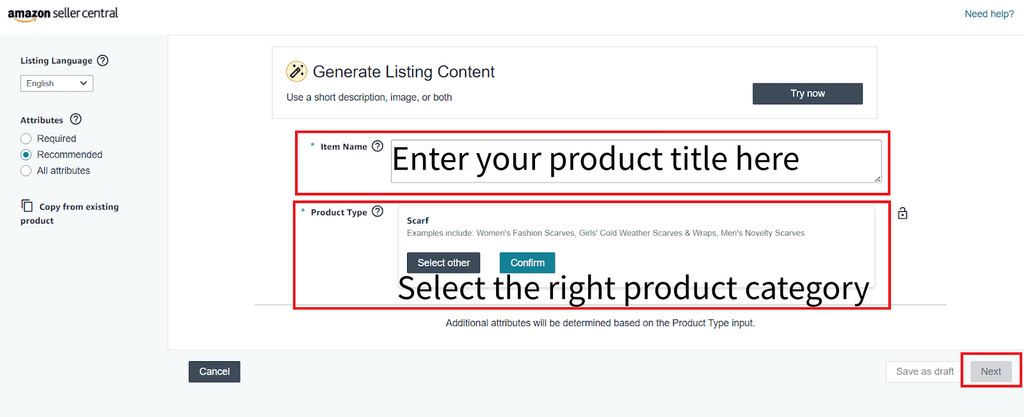
Enter your product name and select the appropriate Product Type.
Amazon may suggest a product type based on the information you enter. Check the suggestion carefully and change it if necessary.
The product type is important because it determines the information Amazon will ask you to provide later.
Once you’ve selected the appropriate product type, click Next.
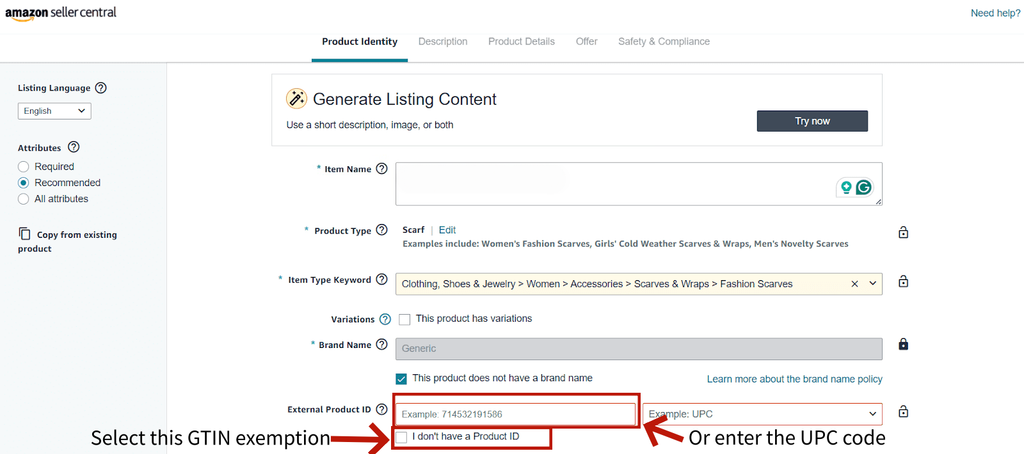
Step 3. Add Your Brand and Product ID
Enter your brand name and product ID, then continue to the next step.
If you have successfully enrolled your brand in Amazon Brand Registry, you may be able to create your branded product without providing a UPC/GTIN, depending on Amazon’s requirements for the specific product and category.
If you’re selling an unbranded product, or your product doesn’t qualify for an exemption, you may need to apply for a GTIN exemption.
Another option is to obtain a UPC/GTIN through a legitimate source such as GS1, the organization that issues GS1 company prefixes and GTINs.
If you’re selling your own brand, make sure the brand name matches the information associated with your trademark and Brand Registry.
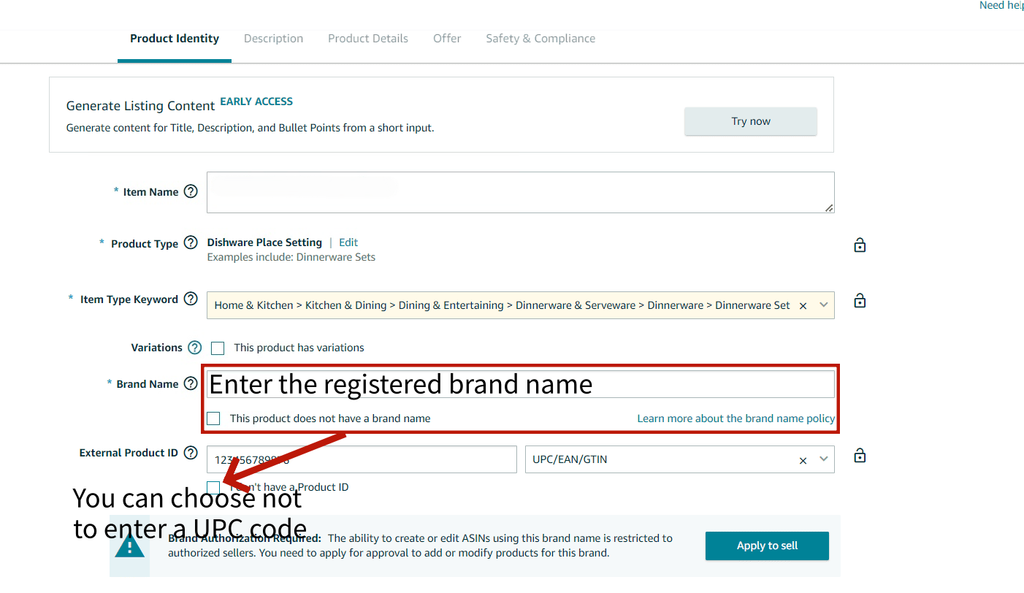
If the product is genuinely unbranded, Amazon may provide an option indicating that the product doesn’t have a brand name.
Step 4. Add Your Product Information
Now you’ll enter the information that will appear on your product detail page.
Depending on the product type, this may include:
- Product title
- Brand
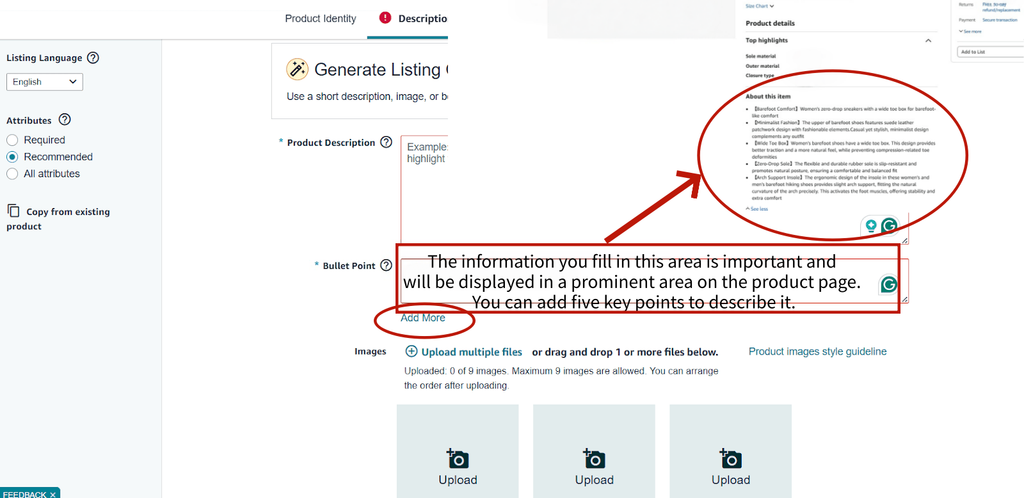
- Key product features or bullet points
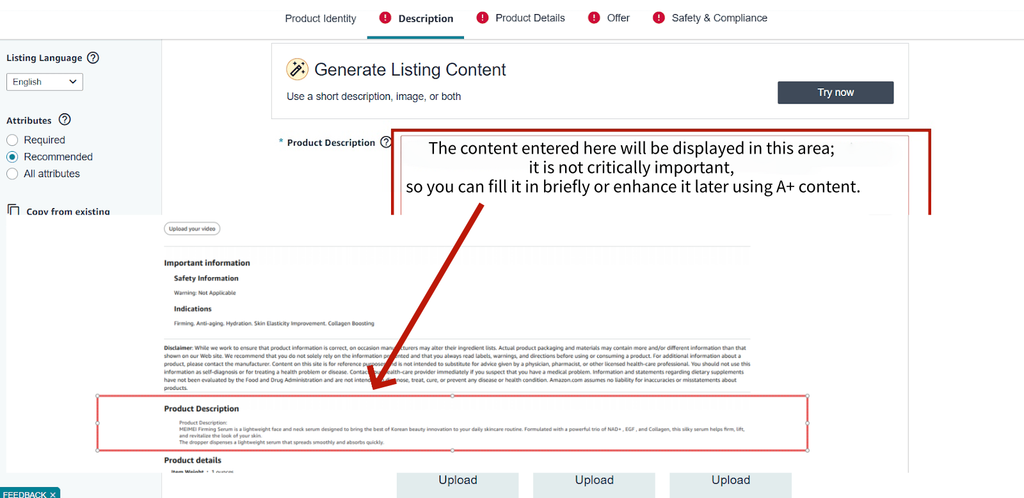
- Product description
- Product images
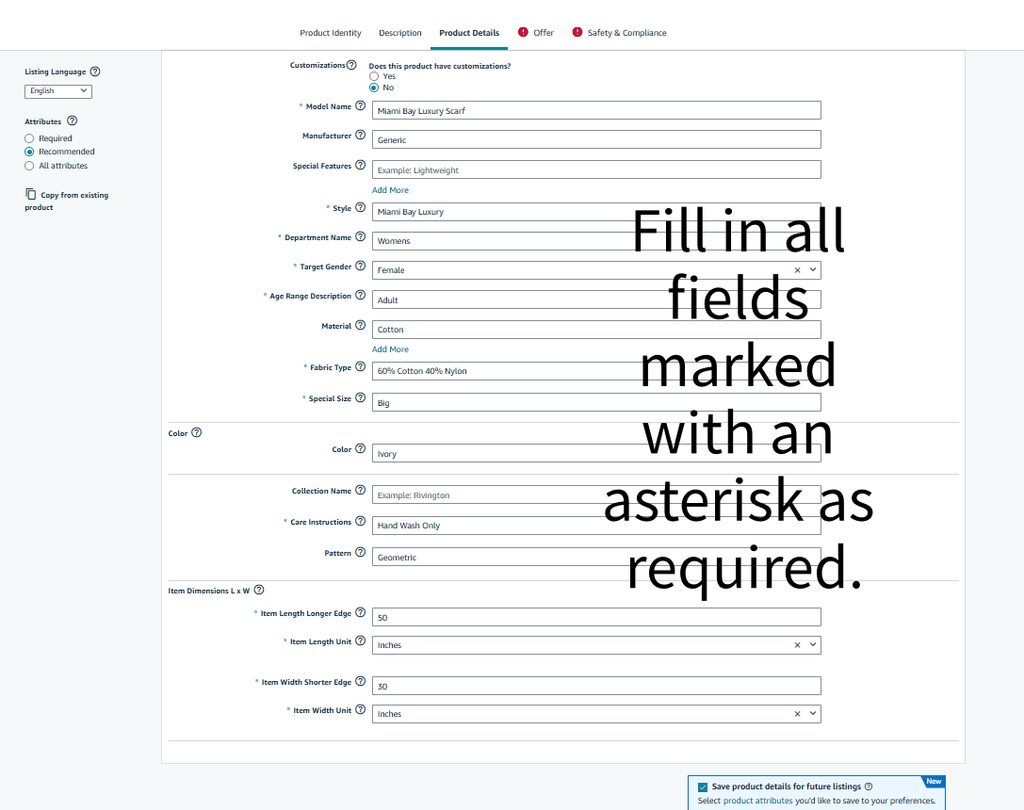
- Other required product attributes
Take your time with this section.
Your title should clearly explain what the product is. Your bullet points should focus on the main features and benefits, while your images should accurately show the product from useful angles.
Amazon may require additional information depending on the product type and category.
Step 5. Add Offer Details
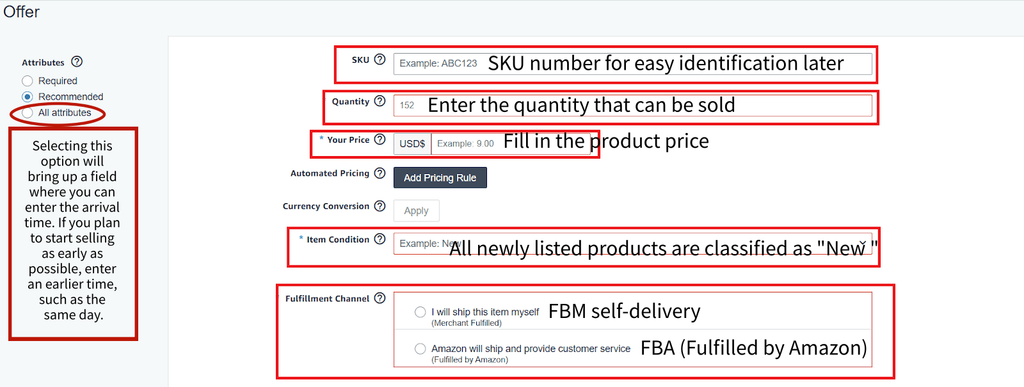
Next, enter the information related to your offer.
This may include:
- SKU
- Price
- Quantity
- Condition
- Fulfillment method
- Shipping information, if applicable
You’ll generally choose between FBA and FBM.
With FBA, Amazon handles storage, packing, shipping, and customer service for eligible orders.
With FBM, you handle fulfillment yourself or through your own fulfillment provider.
Choose the option that fits your product and business model.
Step 6. Add Package Information
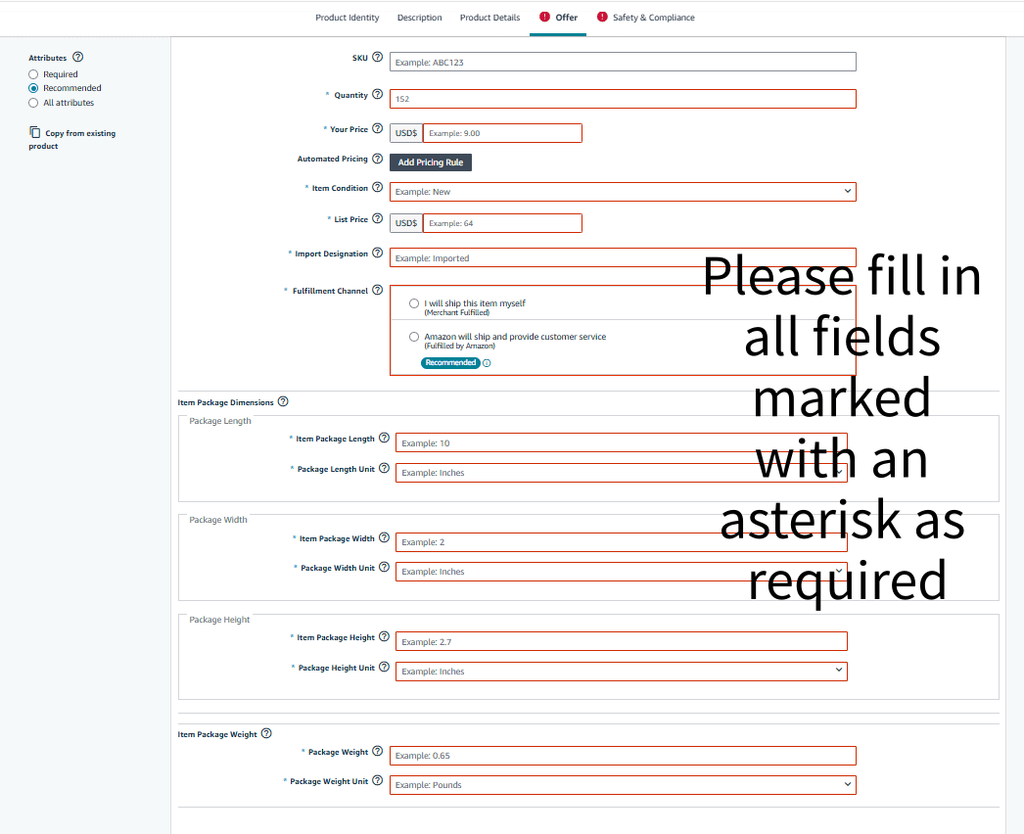
Amazon may ask for your package dimensions and shipping weight.
Enter these measurements as accurately as possible.
This information can affect fulfillment fees and shipping costs, especially if you’re using FBA.
Step 7. Add Safety and Compliance Information
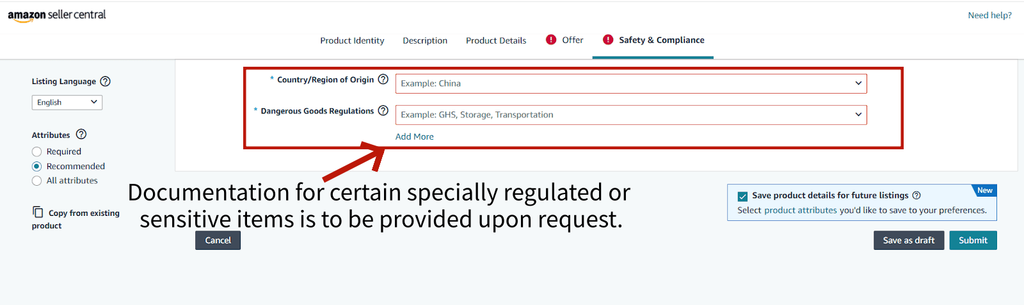
Depending on the product and category, Amazon may ask for additional safety, regulatory, or compliance information.
Some products may require documents such as certifications, testing reports, or other supporting information before they can be listed or sold.
If Amazon asks for additional documentation, provide the required information before submitting the listing.
Step 8. Review and Submit
Before submitting the listing, go through all the information one more time.
Pay particular attention to:
- Brand name
- Product type
- Product ID
- Product title
- Images
- Price
- SKU
- Package dimensions
- Weight
- Fulfillment method
- Compliance information
Once everything looks correct, click Save and Finish or the corresponding submission button shown in your Seller Central account.
Amazon will then process the listing. If everything meets its requirements, the product can go live on Amazon.
Once your listing is live, you can start selling your product on Amazon.
Your first listing may feel a little complicated. There are quite a few fields to fill in, and the process can be confusing the first time you go through it.
But once you’ve completed your first listing, the process becomes much easier.
The bigger challenge is everything that comes after that.
There are many details that can make a real difference to your results on Amazon: how you write your listing, how you structure your five bullet points, how you create your product images, and how you handle the different issues that come up before and after a sale.
Getting a product listed is only the beginning. Building a listing that can actually sell, and then managing everything around it, takes time and effort.
There is a lot to learn, and we’ll share more of our team’s experience and what we’ve learned from selling on Amazon in the articles ahead.