By EC Team · Updated September 15, 2026 · 7 min read
Once your Amazon listing is ready, the next step is getting your products into Amazon’s fulfillment network.
If you’re using Fulfillment by Amazon (FBA), you’ll send your inventory to Amazon, and Amazon will handle storage, packing, shipping, and eligible customer service and returns.
At first, sending inventory to Amazon can seem complicated because there are several steps inside Seller Central. But Amazon’s current Send to Amazon workflow makes the process fairly straightforward.
We’ll use Amazon.com and the U.S. marketplace as the example in this guide.
How to Send Products to Amazon FBA
Step 1. Choose the Inventory You Want to Send
Sign in to your Amazon Seller Central account and open the Send to Amazon workflow.
Start by selecting the products you want to send to Amazon and entering the quantity.
Before creating the shipment, make sure the listing is active and the products are ready to be shipped.
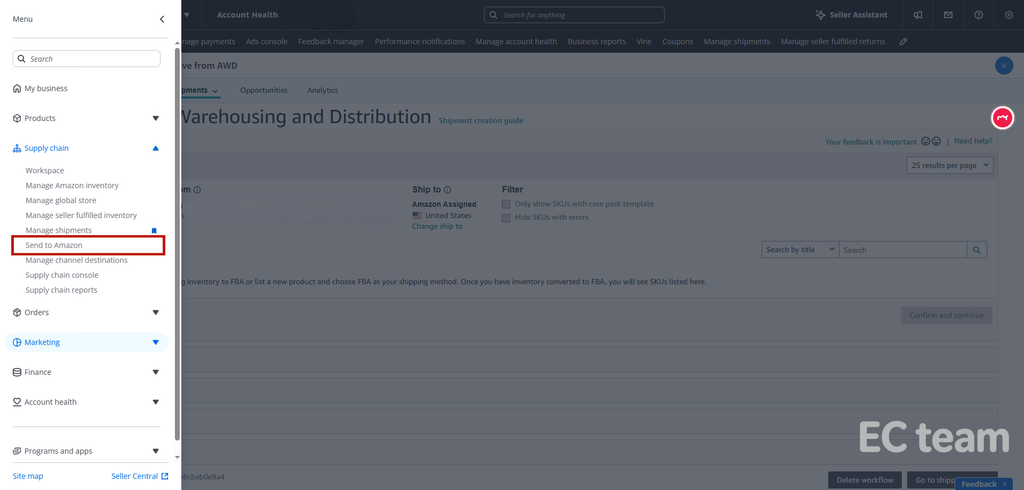
Amazon will use the information from your products and listings to guide you through the rest of the shipment process.
Step 2. Pack Your Products
Once you’ve selected the inventory, Amazon will ask for information about how the products are packed.
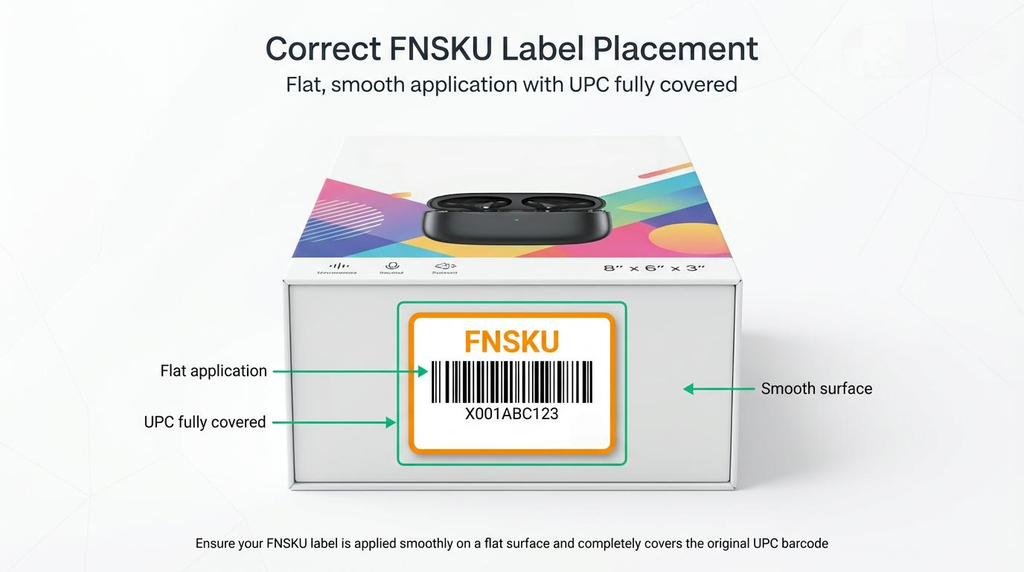
Make sure your products meet Amazon’s packaging and labeling requirements before they leave your facility.
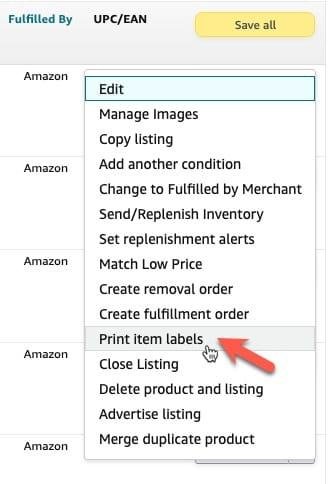
Depending on the product, you may need to apply the appropriate product barcode or other required labels.
One important change for U.S. sellers is that Amazon ended its FBA prep and item labeling services on January 1, 2026. Sellers generally need to make sure products are properly prepared and labeled before they arrive at Amazon.
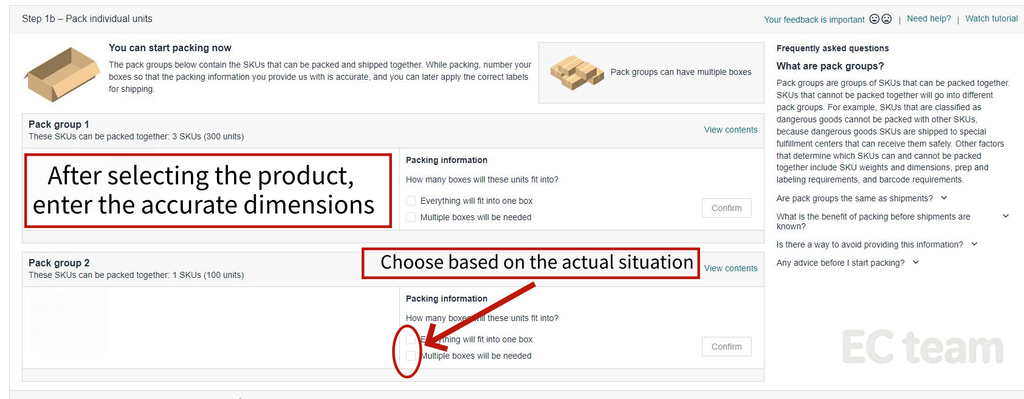
When entering box information, be as accurate as possible with the number of boxes, dimensions, and weight.
Step 3. Confirm Your Shipping Information
After packing information is entered, Amazon will guide you through the shipping section.
You’ll see the available shipping options based on your shipment.
For smaller shipments, Small Parcel Delivery (SPD) is often the simplest option. Larger shipments may use other transportation methods such as LTL or FTL.
The exact options can vary depending on the shipment, destination, and carrier.
At this stage, review the shipment carefully before confirming it.
Step 4. Print Your Box Labels
After confirming the shipment, Seller Central will provide the labels you need for your boxes.
Print the required FBA box labels and apply the correct label to each box.
Make sure the labels are clear, readable, and securely attached.
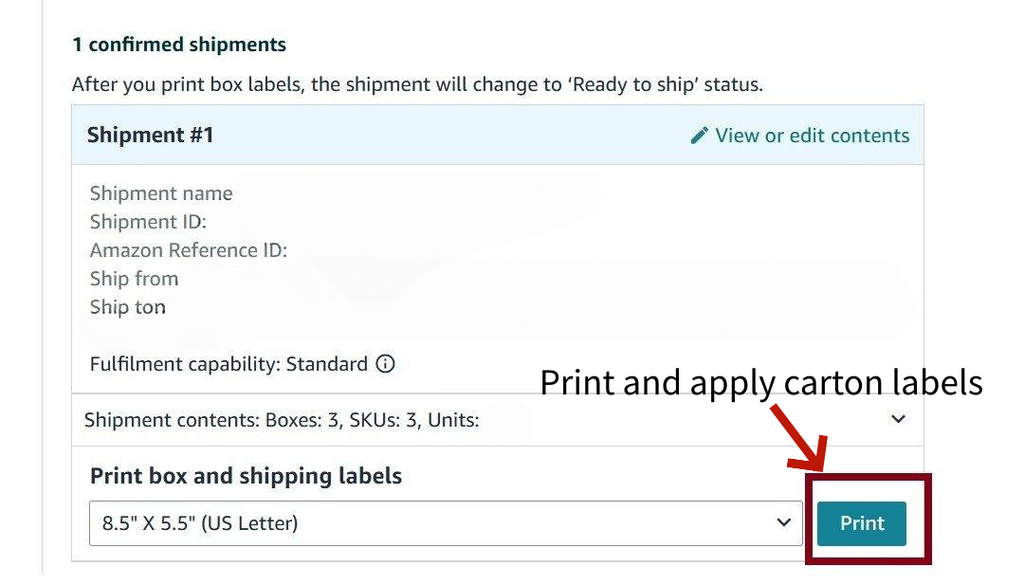
[Your screenshot: FBA box labels]
This is a simple step, but it’s important. Incorrect or missing labels can create problems when Amazon receives your shipment.
Step 5. Ship Your Inventory and Track It
Once your products are packed and labeled, hand the shipment to your selected carrier.
Depending on the shipping method, you may need to provide tracking information in Seller Central.
You can then monitor the shipment through the Send to Amazon workflow.
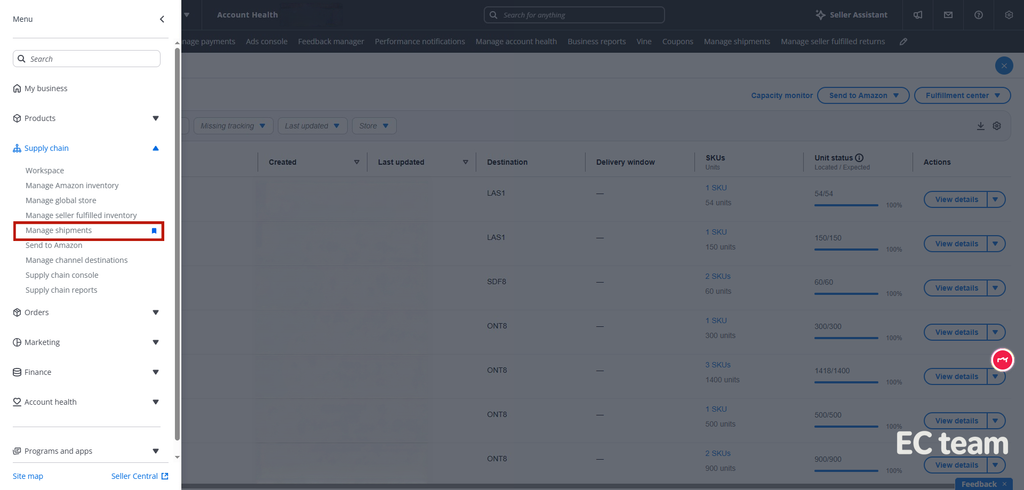
Keep an eye on the shipment status until Amazon receives the inventory.
Step 6. Amazon Receives Your Inventory
When the shipment arrives at Amazon, the process isn’t necessarily finished immediately.
Amazon may need to receive, check, and process the inventory before the units become available for sale.
So don’t worry if the carrier shows the shipment as delivered but the inventory isn’t immediately available in your account.
You can continue checking the shipment status in Seller Central while Amazon processes the inventory.
A Few Things to Check Before Shipping
The actual FBA shipment process is relatively simple, but a few mistakes can cause unnecessary delays.
Before sending your inventory, check that:
- Your listing is active.
- Your products are properly prepared and labeled.
- Your quantities are correct.
- Your box dimensions and weights are accurate.
- Every box has the correct FBA box label.
- Your shipping information is correct.
- You have saved the tracking information when required.
This guide is our team’s simplified version of the FBA shipping process. For more detailed instructions on things like packaging, labeling, and calculating shipping costs, you can also refer to Amazon’s official FBA training videos.
FBA or FBM?
FBA isn’t the only way to fulfill Amazon orders.
With FBA, Amazon handles much of the fulfillment process after you send your inventory to its network. This can make the selling experience more convenient for both sellers and customers, and FBA can be more competitive for many products.
However, FBA also requires more planning around inventory, cash flow, storage, and overall operations.
FBM gives sellers more control over fulfillment. Instead of sending inventory to Amazon’s fulfillment network, you handle the shipping yourself or through your own fulfillment provider.
For some sellers, FBM can be a more flexible and accessible option, especially when they want more control over their inventory or fulfillment process.
Neither model is automatically better for every seller.
FBA may be a better fit if you have the inventory and operational capacity to use Amazon’s fulfillment network. FBM may make more sense if you prefer greater control over fulfillment or have a setup that works well outside Amazon’s warehouses.
It ultimately depends on your product, margins, inventory, fulfillment setup, and how you want to run your business.
In the next guide, we’ll walk through the FBM shipping process step by step.